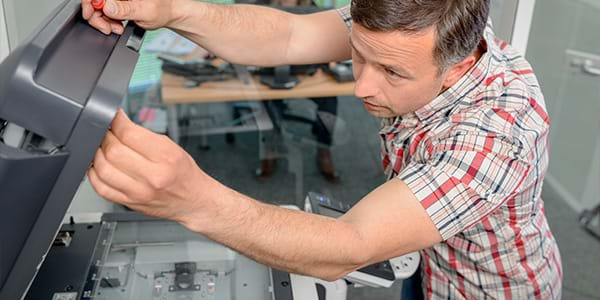


- Resolve paper jams, slow printing, low-quality prints, and stuck print jobs with simple troubleshooting steps like cleaning rollers, adjusting print settings, clearing the print queue, and restarting the print spooler.
- “Printer not found” and “printer offline” errors are usually caused by network issues or outdated drivers. Check connections, restart devices, and update printer drivers to restore functionality.
- Regular maintenance, correct paper handling, and up-to-date firmware help avoid recurring printer problems, while IT support or managed services can minimize business disruptions.
One of the biggest headaches IT help desks face is printer-related issues. In fact, up to 60% of IT help desk calls are print-related. For anyone who's worked in an office, they know the frustrations of printer issues. After all, printing trouble could affect your productivity.
But don't fret, as this article will walk you through common printer problems and how to fix them.
Paper Jams
Paper jams are arguably the most common and frustrating printer-related issue to deal with. This issue typically occurs when paper or other printer material gets stuck or lodged in a printer and cannot eject. A paper jam can occur due to a handful of reasons, but common ones include dirty paper rollers inside the printer, too much paper in the tray, and damp paper.
How to Fix Paper Jams
To troubleshoot a paper jam, follow the steps below:
- Step 1: Turn off and unplug the printer
- Step 2: Remove jammed paper
- Step 3: Inspect and clean the rollers by wiping them with a lint-free cloth
- Step 4: Reload paper properly
- Step 5: Reconnect the printer and restart
Slow Printing
Slow printing is a performance-related issue where a printer takes more time to print than usual, causing delays. Print quality settings or outdated drivers usually cause it.
How to Troubleshoot Slow Printing
There are different ways to troubleshoot slow printing issues, with the four below being the most common and DIY friendly:
- Option 1: Adjust print quality
- Select Start > Settings > Bluetooth & devices > Printers & scanners.
- Select your printer, then head to Manage > Printing preferences.
- Under Paper/Quality, choose a suitable level.
- Option 2: Use a wired connection instead of using Wi-Fi
- Option 3: Update your firmware by visiting your printer's support site and installing available updates.
- Option 4: Cancel large files or pages with hi-res images
Low-Quality Prints
Print quality is another common issue, usually manifesting in blurry, faded, or streaky documents. There are different possible reasons for the lack of quality, with common ones including incorrect printer settings, outdated drivers, low ink/toner levels, or hardware problems. This issue can also be because your printer can't handle the paper type or print resolutions.
How to Prevent Low-Quality Prints
There are different steps you should take to fix the issue due to the handful of possible reasons for the poor print quality. Below are common troubleshooting steps you can try:
- Option 1: Check the printer and paper
- Check if you have the correct paper type and size, and ensure you're using dry paper that meets the manufacturer's recommendations. Also, check the cartridges to see if the ink and toner are filled.
- Option 2: Verify printer settings
- Head to Start > Settings > Bluetooth & devices > Printers & scanners.
- Select your printer, then select Printing preferences. Check the following:
- Print quality = Normal/Best
- Economy, Draft, or Toner saver mode = Off.
- Select apply.
- Option 3: Run the troubleshooter
- You can run the automated Printer troubleshooter in the Get Help app if you're using Windows 11 to run diagnostics and fix printer issues.
- Option 4: Update or reinstall the printer driver
- Head to Start > Device Manager.
- In Device Manager, expand the Printers section.
- Right-click on your printer and select Update driver.
- Option 5: Print from a different app or file
- Try printing from a different app or file to help rule out specific issues.
Printer Not Found
A printer not found/recognized issue indicates your device is not able to communicate with your printer, usually due to network issues or outdated drivers.
How to Fix Printer Not Found Issue
Below are common ways to troubleshoot and fix the issue:
- Option 1: Check printer connections
- Make sure your printer is turned on and check all the cables are properly connected, and the connections (Wi-FI, Bluetooth, etc.) are connected to the proper router/device.
- Option 2: Restart the printer spooler service
- Press Win + R, type services.msc, then press Enter.
- Find Print Spooler, right-click it, then press Restart.
- Option 3: Update drivers
- Head to Start > Device Manager.
- In Device Manager, expand the Printers section.
- Right-click on your printer and select Update driver.
- Option 4: Run the automated troubleshooter
- You can run the automated Printer troubleshooter in the Get Help app if you're using Windows 11 to run diagnostics and fix printer issues.
Stuck Print Job
A stuck print job means the queue isn't moving, preventing further print jobs from printing. This issue is usually accompanied by grayed-out Cancel or Delete buttons, disallowing users from manually canceling or fixing the queue.
How to Fix a Stuck Print Job
To fix a stuck print job, follow the steps below:
- Step 1: Cancel all print jobs
- Select Start > Settings >Bluetooth & devices > Printers & scanners.
- Right-click your printer, then select Open print queue.
- Right-click the print jobs, then press Cancel.
- If that doesn't work or if the Cancel button is grayed out, proceed to step 2.
- Step 2: Restart the print spooler service
- Press Win + R, type services.msc, then press Enter.
- Find Print Spooler, right-click it, then press Restart.
- Step 3: Manually clear the spool folder
- Press Win + R, type services.msc, then press Enter.
- Find Print Spooler, right-click it, then select Stop.
- Open File Explorer, then navigate to: C:\Windows\System32\spool\PRINTERS
- Delete all the files inside the folder.
- Press Win + R, type services.msc, then press Enter.
- Find Print Spooler, right-click it, then select Start.
- Step 4: Restart your computer
Offline Printer
An offline printer is mostly due to connection issues. This could either be a loose cable or an incorrect Wi-Fi network connection. However, there are also cases when the problem stems from driver trouble or power issues.
How to Resolve the “Printer is Offline” Issue
To troubleshoot this issue, try any of the options below:
- Option 1: Unplug and restart your printer
- Option 2: Check if the printer is connected to the same Wi-Fi network as your device
- Option 3: Restart your computer
Fix and Prevent Printer Issues with 1300 Intech
Fortunately for users, common printer issues are repairable through DIY means. Paper jams, low-quality prints, a stuck print job, and the like also usually share similar troubleshooting steps, making them easy to deal with at home.
However, the same can't be said for work-related printers, as every minute with a malfunctioning device could mean hundreds of dollars of revenue loss.
To prevent this from happening, it's best to partner with an MSP that provides quality services. Here at 1300 InTech, our IT help desk support will help you solve daily tech issues, including printer problems.
In addition, our experts can provide quick answers and preventive measures to ensure your business runs smoothly.
Book your 15-minute discovery call today to transform your future into one with fewer worries.
Printer Troubleshooting & Maintenance FAQ
How do I fix paper jams in common home printers?
Turn off and unplug the printer. Open all panels and gently remove jammed paper in the direction of the feed. Check for leftover scraps, reload paper properly, and avoid overfilling the tray. Persistent jams may mean the rollers need cleaning or replacement.
Where can I find authorized service centers for printers nearby?
Visit your printer brand’s official website and use their “Service Center Locator” under the support section. You can also contact customer support to confirm nearby authorized centers.
How do I replace ink cartridges for popular inkjet printers?
Open the cartridge access door while the printer is on. Remove the old cartridge, insert the new one without touching contacts, and snap it into place. Close the door and follow any alignment prompts.
Why is my printer not responding to my print command?
Check that the printer is powered on, connected (USB/Wi-Fi), and set as the default printer. Restart both the printer and computer, clear any stuck print jobs, and ensure drivers are installed and up to date.